App guide
Install the app, create an account, add a tracker and activate a subscription — then use the map and reports.
Install on phone
Depending on whether your phone is Android or iPhone, follow one of these two paths.
Android
The full app installs and its icon stays on your phone like any other app.
iPhone and iPad
The app is added to the home screen from Safari and opens exactly like an app.
Android
- In your phone browser, go to arcagps.ir and tap the download app option. The direct file link is: arcagps.ir/download/arca.apk
- File size is about 55 MB preferably download over Wi-Fi.
- After downloading, tap the file to start installation.
- The phone shows a message that installation from this browser is not allowed. Tap Settings then the option «Allow installation of unknown apps» turn it on and go back.
- Tap Install tap and wait.
iPhone and iPad
- In Safari go to arcagps.ir Go.
- tap the button Share at the bottom of the page — a square with an up arrow.
- In the list that opens, scroll down a bit and «Add to Home Screen» or «Add to home screen» press.
- Tap Add tap. The Arka icon appears on your phone’s home screen.
Create account and log in
with your mobile number. No email needed.
- Open the app and Sign up press.
- Full name and Mobile number log in.
- Get verification code tap. A five-digit code is sent by SMS.
- Enter the code in the box SMS code and Verify and continue press.
- a Password create for your account and save.
next time
just Login tap and enter your mobile number and password.
If you forgot your password
on the same login page, Get recovery code tap. An SMS code is sent and after verifying it you can New password create.
Add tracker to account
done once, then the tracker stays in your account forever.
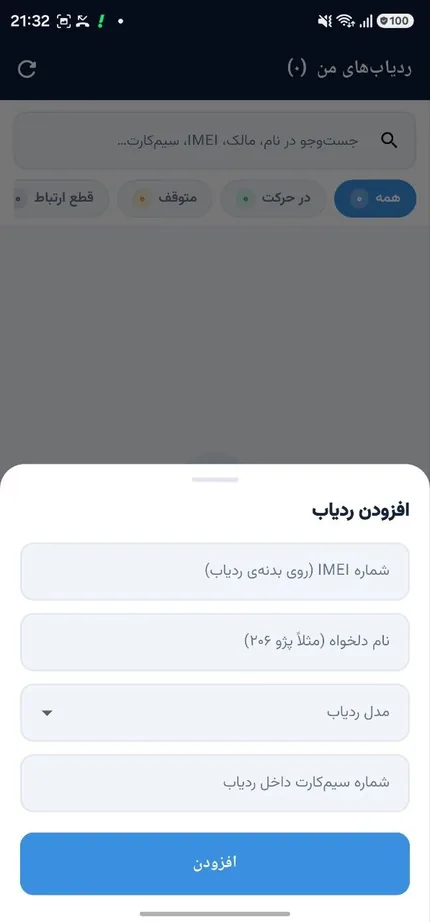
In the app Add tracker tap and fill in these four fields:
| Field | What to enter |
|---|---|
| Tracker IMEI / ID | The 15-digit serial number on the label behind the device or on the box. This is the most important field. |
| Tracker model | Select from the list. If you pick the right model, the app will later generate SMS commands for that model. |
| Vehicle name (optional) | Any name you know — "white Peugeot", "pickup", "bike". Helps when you have several trackers. |
| Mobile number inside the tracker | The SIM number inside the device — not your own number. Needed to generate SMS commands. |
Activate subscription
For the tracker to stay continuously on the map, your account needs an active subscription.
- In the app Buy subscription tap. (If you had a subscription before and it expired, this same button Renew subscription is shown.)
- Choose a plan — 1-month, 3-month, 6-month or 1-year. The current price of each plan is shown there, and longer plans are more economical.
- Payment and activation tap. You are redirected to the bank gateway.
- Complete the payment. After payment, the page automatically returns to the app.
Using the app
Now that everything is active, here’s what you can do.
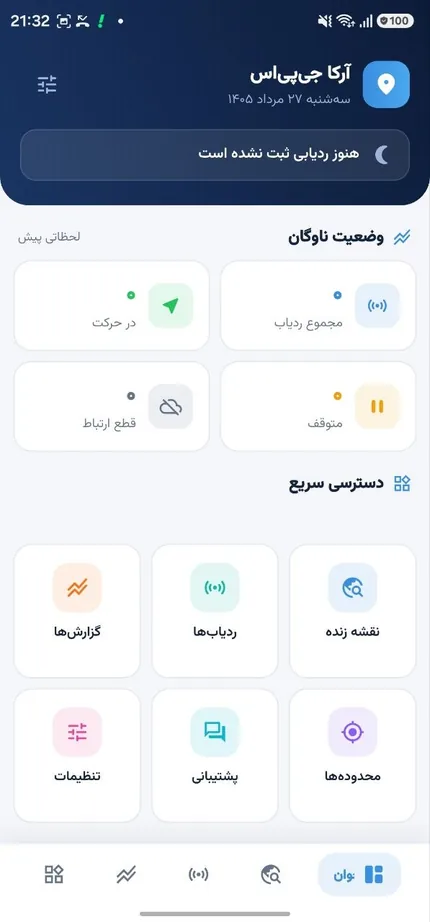
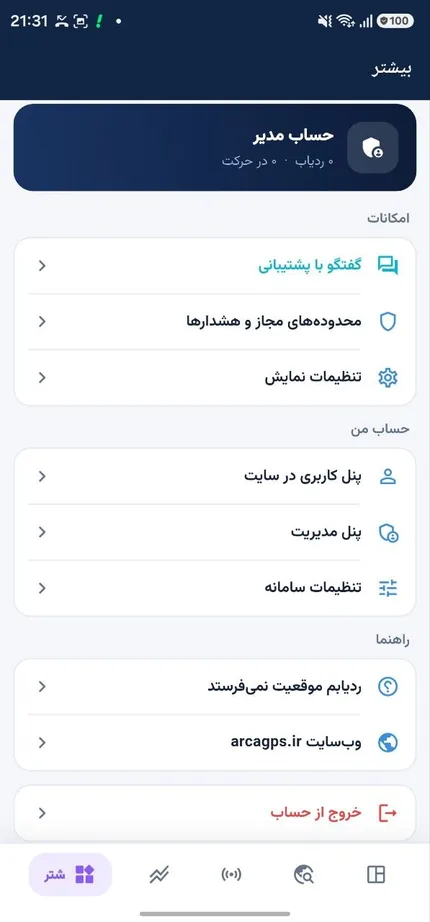
Live map
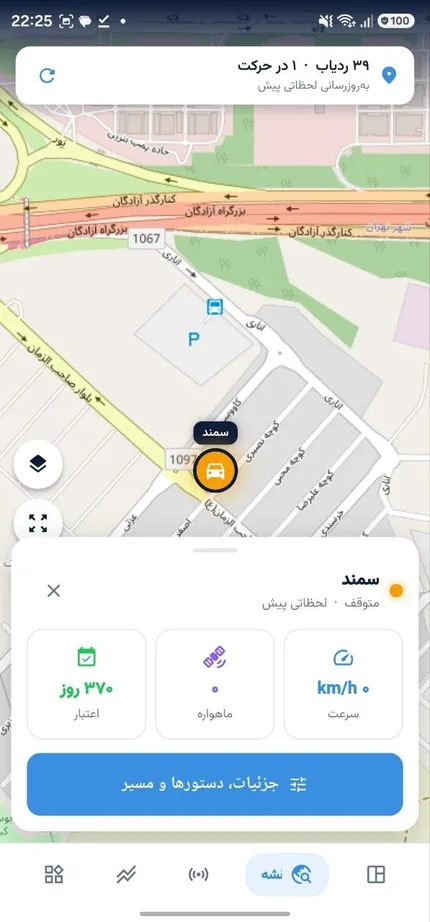
Live device positions. Each tracker shows its status: Moving, Stopped, Offline or No position. With Auto follow The map follows the vehicle. Positions update every 5 seconds are refreshed.
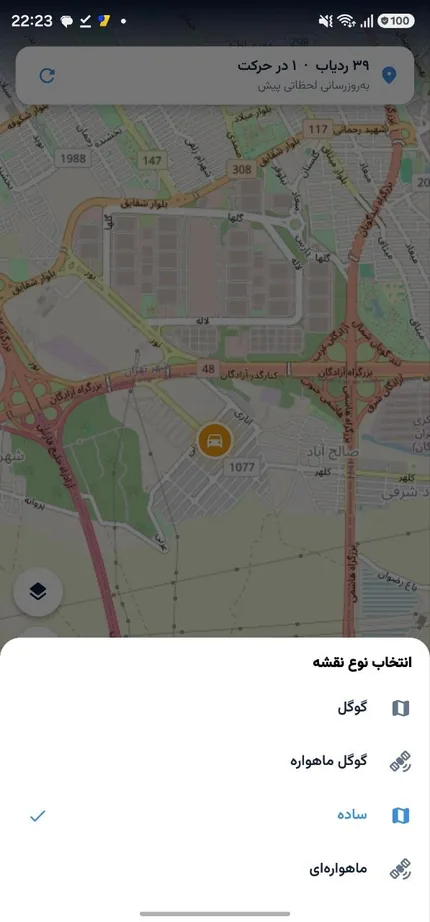
Select map type: Tap the layers button (bottom corner) to open the list. Each is better for a purpose:
- Pin — Iran streets and addresses are more accurate. Best for city.
- Google — Global coverage, good for intercity roads.
- Google Satellite — Real ground imagery. For finding exact parking or warehouse location.
- Simple — Lightest, when internet is weak.
- Satellite — Alternative satellite imagery.
Your choice is saved; the same map loads next time.
Route playback
With Route playback You can see where the vehicle went in the past. Choose the range from Today, Last 2 days, Last 7 days or Last 30 days select. Playback speed can also be set to 1×, 4× or 10× set.
Reports
From Reports and then Get report, you get a trip summary: distance traveled, moving time, stops and speed.
Geofence
With Add geofence You can draw an area on the map — e.g. around work or home — and then Save geofence tap. Then you choose for Entry and exit, Entry only or Exit only you get notified.
SMS commands
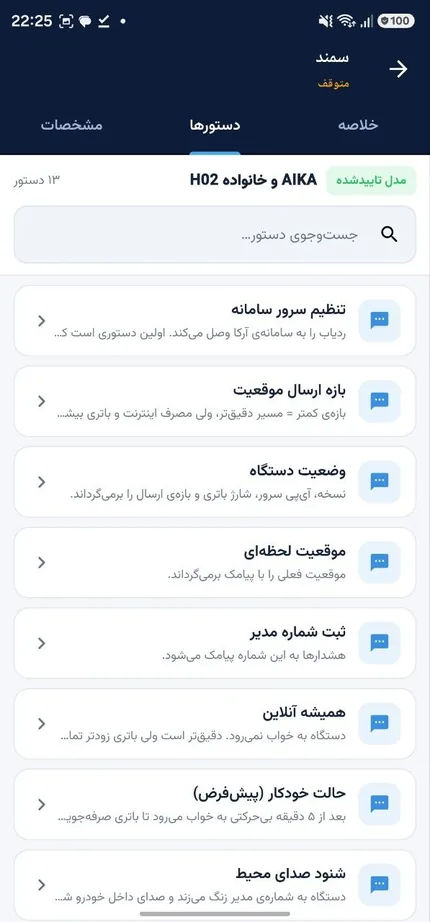
This section makes it easy: no need to memorize any command. Go to SMS commands select what you want and Compose SMS text tap. The app generates the exact text for your device model را میسازد. بعد Copy text tap and send it via SMS to the SIM number inside the tracker.
Edit details
If you entered the vehicle name, model or SIM number incorrectly, Edit details correct it.
App update
From version 1.3 onward, whenever a new version is released the app notifies you on open. Just tap Download and install to download the new file, then tap the file to install it.
If something isn’t working
Most app issues are fixed with these few steps.
| Signal | Solution |
|---|---|
| Android file won’t install | اجازهی «نصب برنامههای ناشناس» را برای مرورگری که با آن دانلود کردهاید روشن کنید. اگر باز هم نشد, فایل را پاک کنید و دوباره دانلود کنید — احتمالاً دانلود ناقص بوده. |
| No "Add to Home Screen" option on iPhone | You’re not in Safari. Open the address in Safari and try again. |
| SMS code not received | حدود یک دقیقه صبر کنید و دوباره درخواست بدهید. اگر روی خط خود «مسدودسازی پیامک تبلیغاتی» فعال کردهاید, موقتاً غیرفعالش کنید. |
| Tracker added but not on the map | یعنی دستگاه هنوز به سامانه وصل نشده. راهنمای راهاندازی ردیاب را دنبال کنید — به احتمال زیاد دستور تنظیم سرور فرستاده نشده یا سیمکارت اینترنت ندارد. |
| Position is old and not updating | The device is connected but has no satellite fix. Move the vehicle to open space. Under a covered parking it will stay this way. |
| App shows an old page | Close the app completely and reopen it. On iPhone, remove the icon from the home screen and add it again. |
| Can’t sign in | Enter the number with 0 leading and no spaces. If you forgot your password, use Get recovery code use it. |